GETTING LOGGED IN ON THE WEB:
- Login to your Keystone Connect account
- Click on the Elite Agronomics tile
- A new browser tab will open and log you into Elite Agronomics.
- To get back to Keystone Connect click on the original browser tab.
NAVIGATING THE WEB
WEBPAGE LAYOUT
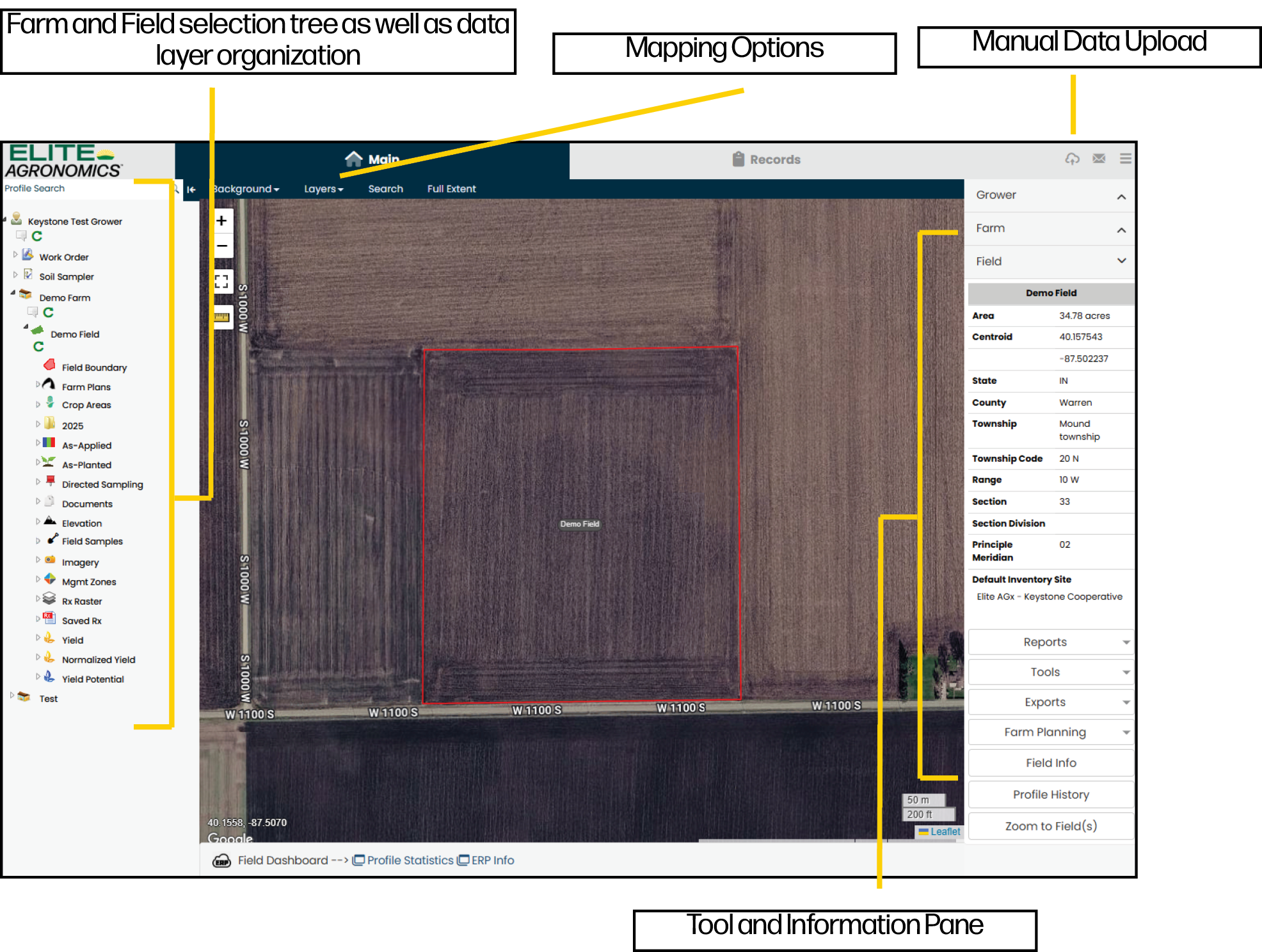
How to view a single map layer:
- Open the grower, farm, field tree on the left to the desired field.
- Click on the arrow next to the layer type you would like to view. Then select the year and layer.
- The map layer will appear. The right side of the screen will show the map legend along with any mapping tools available.
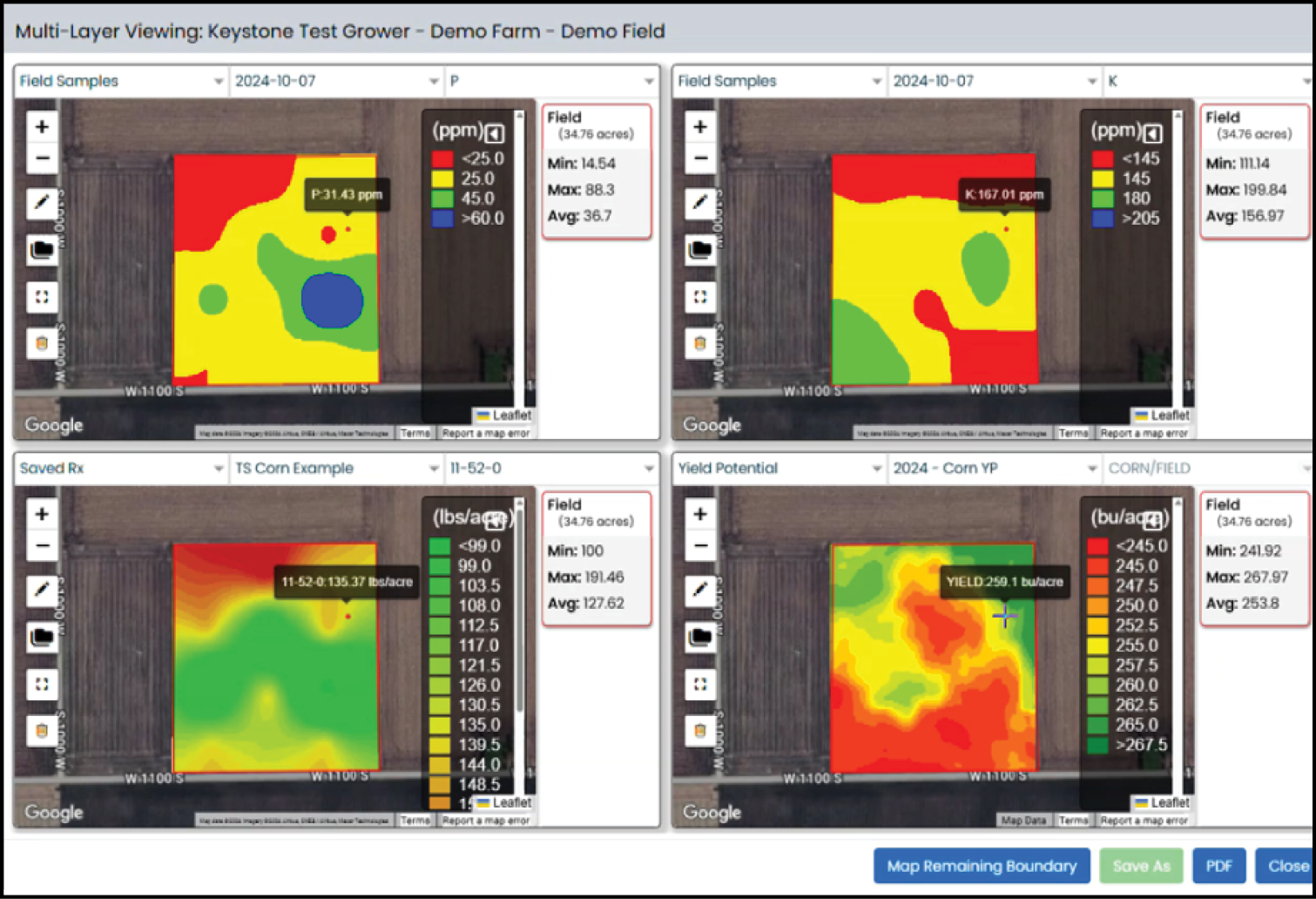
HOW TO USE MULTI-LAYER VIEWING:
- Open the grower, farm, field tree on the left to the desired field.
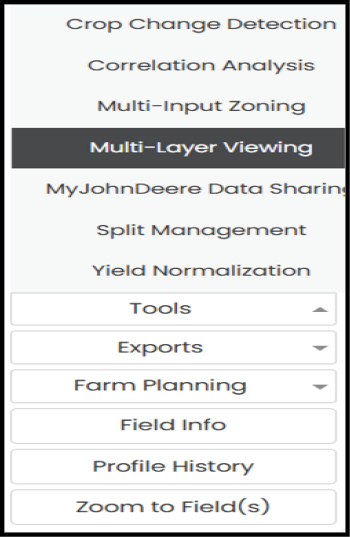
- On the left under the Field drop down select Tools > Multi-Layer Viewing.
- In the pop-up window select the desired layer above each map window.
- Tip: Click the pencil icon to add a zone to each map for additional analysis.
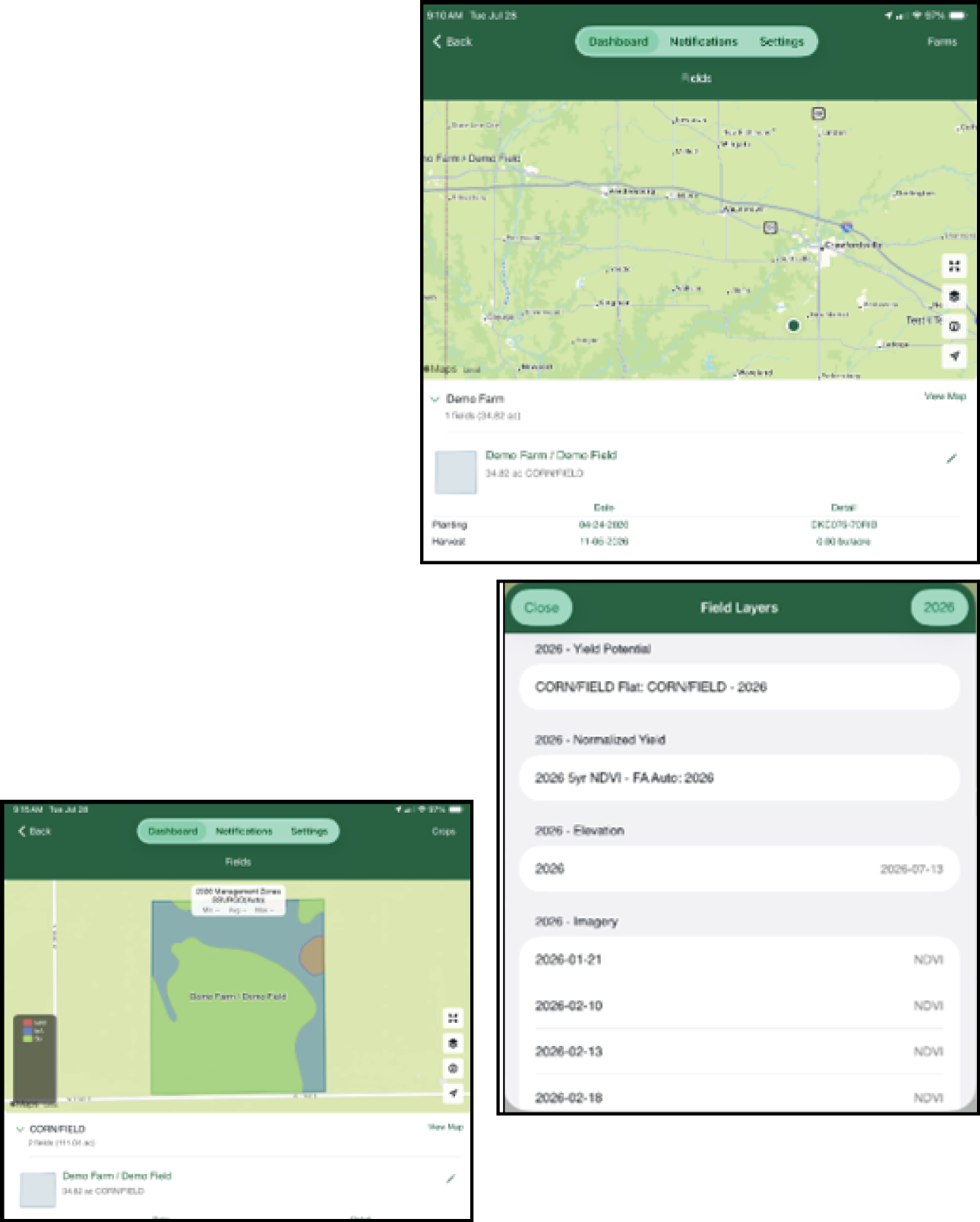
Getting logged in on the App:
- Open the Keystone Connect app
- Press on the Elite Agronomics tile.
- If this is the first time logging in you will be redirected to the Apple App Store or Google Play Store to download the Elite Agronomics App. Once downloaded the will automatically redirect to this app.
- If the Elite Agronomics app has been installed already this app will open automatically and log in.
- To get back to Keystone Connect press the app return button in the top left corner (iPhone) or switch back to the Keystone Connect app.
APP LAYOUT
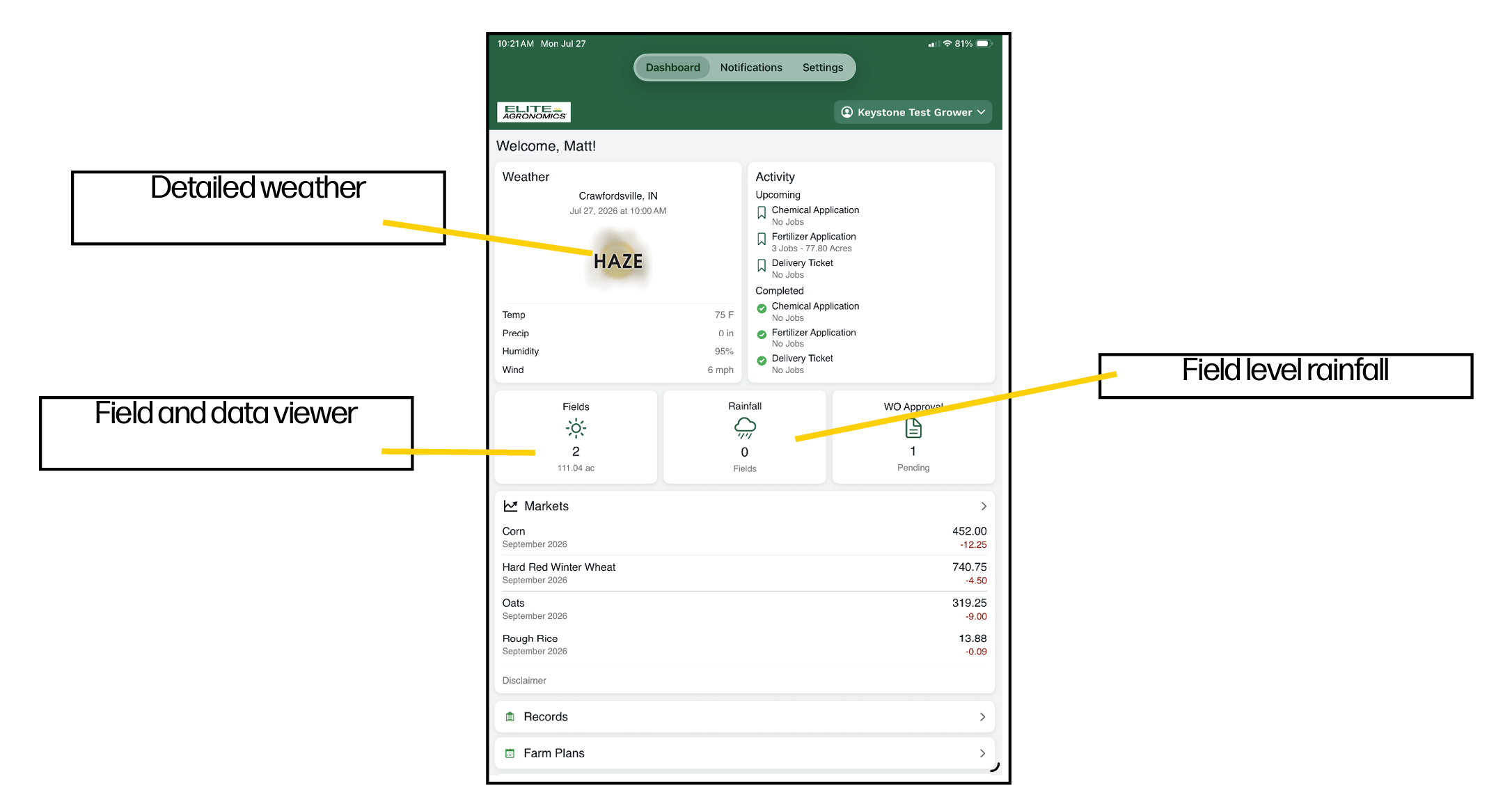
VIEWING MAPS & CROPS
- From the Home tab select the Fields Tile.
- The field navigation page will open.
- The default view is organized by Farm. To organize by Crop press on Farm in the top right cover and switch to crop.
- Open the desired farm or crop in the list to see each field. Assigned crops will be shown below the field name.
- Press on the field name to zoom into that field.
- Click the layer icon in the corner of the map to see available map layers.
- Tip: Select the year at the top of the list to see historical map layers.
- Select the map layer and you will be taken back to the map with the selected layers shown.
- Tip: If you are in the field press on the target icon in the right corner of the map to show your location in the map as well.